

Multiple Batch Schedules Within the Same Day
Overview
Aria Billing Cloud supports multiple batch schedules within a single calendar day, allowing you to process accounts belonging to different regions or time zones at separate times. This feature is built around the concept of a Secondary Batch Schedule Group (SBSG), which determines which batch schedule processes a given account.
By default, all accounts in your client instance run through the Primary Batch Schedule (PBS). When your client has accounts that operate in different time zones or require separate processing windows, you can define one or more Secondary Batch Schedules (SBS) and associate them with Functional Account Groups (FGs). Accounts that belong to an FG linked to an SBSG are then processed by the corresponding SBS rather than the PBS.
For example, a client configured in UTC+2 (Denmark) might run its PBS at 1:30 AM local time. Accounts belonging to a Sweden FG could be assigned to an SBSG that runs a separate SBS at 6:00 AM, while accounts belonging to a Norway FG use the same SBSG—because both regions share the same processing window.
Note: Though different customer timezones drive SBS use cases, you must configure batch schedules and explicitly associate accounts to an SBS-linked Functional Account Group as outlined below.
Prerequisites
Before configuring multiple batch schedules, confirm the following:
- Your client instance is configured on Aria Billing Cloud.
- Your time zone is set correctly on your client instance.
- At least one Functional Account Group (FG) exists in your client instance. FGs are used to associate accounts with an SBSG. See Functional Account Groups for more information.
- You have identified the processing window (start hour and minute) for each Secondary Batch Schedule you intend to create. Each SBS must have a unique start time; no two schedules (primary or secondary) within your client instance can share the same start hour and minute.
- The start time for any SBS must fall within the current calendar day in your client instance time zone and cannot precede midnight (00:00) or exceed 23:59.
How to Configure
Configuring multiple batch schedules involves three phases: creating the SBSG definition (performed by Aria Operations), assigning the SBSG to one or more Functional Account Groups, and assigning those FGs to accounts.
Phase 1: Create the Secondary Batch Schedule Group
Getting here: Configuration > Billing > Batch Processes
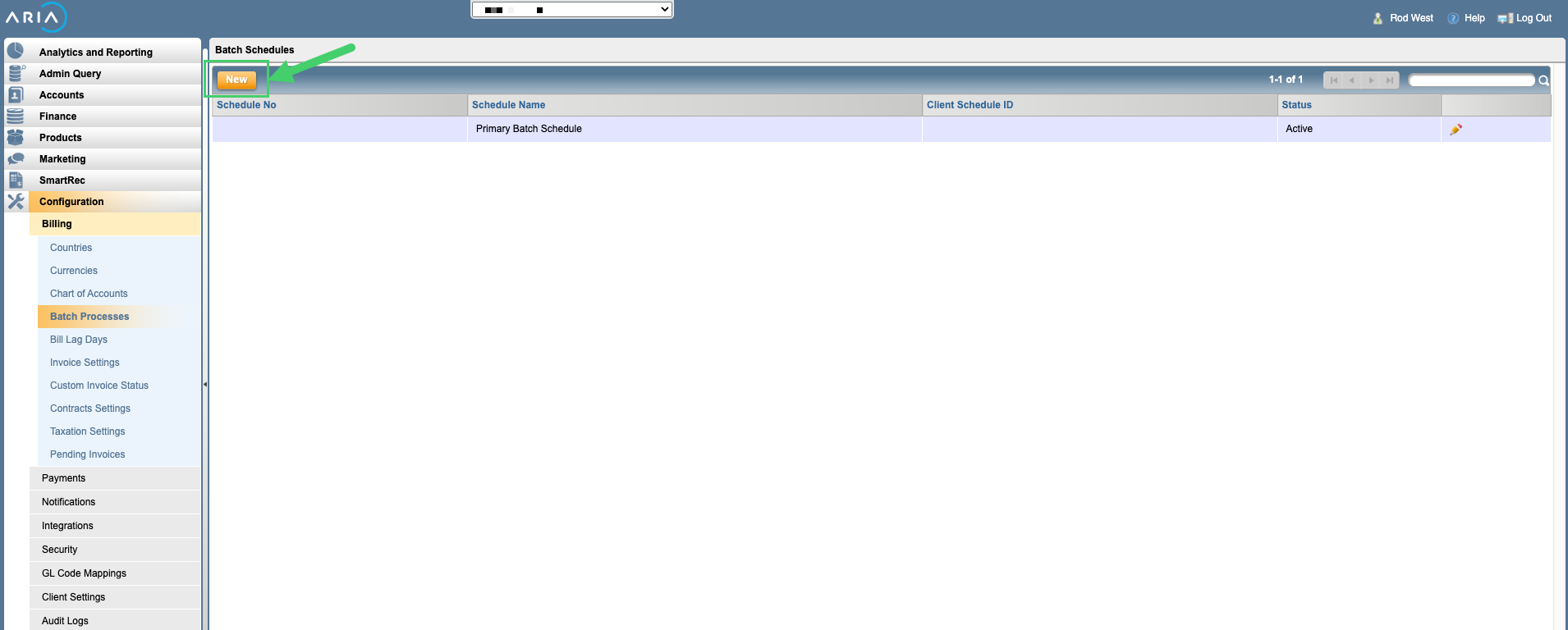
- Click the New button.

- Type a descriptive name in the Schedule Name field.
- Aria auto-populates the Client Schedule ID. You can use this name can be used in API calls in your Stage and Production instances of Aria.
- Type a description of the Secondary Batch Schedule in the Description field to help Aria administrators understand what this new schedule is used for.
- Choose a value from the Status field.
Active: This Secondary Batch Schedule will be active, once created and the Start Date has arrived.
Inactive: This Secondary Batch Schedule will be saved in Aria but will not be used. You can set it to Active later. - Type a Start Hour in 24-hour format (aka military time) and a Start Minute to specify the hour of the day Aria should run this batch schedule. Choose a Start Date from which you want this batch schedule, when in a Active status, to begin running daily.
- Click the Save button. The new schedule is listed on the Batch Schedules screen.

You have created a daily batch schedule that you can now associate with a Functional Account Group. Aria will follow this batch schedule for accounts assigned to that Functional Account Group. Notice the cascading names of the Aria batch jobs on the Batch Processes screen. The Pre-invoicer is the first batch job Aria runs at the time you scheduled. The batch jobs are each dependent on the one listed above.
Batch Process Status: Turning Schedules On, Off, or Suspended
You can control the status of individual batches within a Secondary Batch Schedule using the same Batch Process Audit Log UI used for the Primary Batch Schedule. Each batch and its sub-jobs can be turned on, turned off, or suspended at the SBS level independently from the PBS. Clicking a batch schedule on the Batch Schedules screen shows you the batch schedule settings. The Manage Batches tab allows you to turn the schedule off or temporarily suspend it:

The following rules apply:
- Turning a main batch on or off propagates that status to all of its sub-jobs, except for sub-jobs that were individually turned off for your client instance. Those sub-jobs retain their individually configured status and are not automatically turned on when the main batch is turned on.
- Sub-jobs cannot be suspended individually. To suspend a sub-job, suspend its parent main batch, which suspends all sub-jobs within it.
- Alert email addresses configured on the PBS are used for the SBS as well; the SBS does not support a separate alert email address override.
- SBS alert emails include the SBSG number in the notification, alongside the batch process ID and other standard details.
Note: Dependent batch jobs will not start until the prior job completes regardless of the scheduled start time.
Phase 2: Assign the SBSG to Functional Account Groups
Getting here: Configuration > Client Settings > Functional Account Groups
See Create Functional Account Groups to learn the full procedure for creating a Functional Account Group. Select the name of the Secondary Batch Schedule you created from the Secondary Batch Schedule Group dropdown as shown below:

Note: The system discards any pending, unprocessed SBSG change queue records for an FG when you make a subsequent change to that FG's SBSG on the same day.
Phase 3: Assign Functional Account Groups to Accounts
Via the UI
Getting here: Accounts > Search for and select an account > Account Groups tab
Once you select an account, click the Account Groups tab and select the Functional Account Group associated with the batch schedule.
Via API
Assign FGs to accounts using one of the following APIs:
- create_acct_complete_m API—use when creating an account and assigning an FG at the same time. See the create_acct_complete_m API Guide for field details.
- assign_functional_acct_group_m API—use to assign an FG to an existing account. See the assign_functional_acct_group_m API Guide for field details.
- update_acct_complete_m API—use to add or remove FGs on an existing account. See the update_acct_complete_m API Guide for field details.
The following rules apply when assigning FGs that carry an SBSG:
- An account can have only one FG associated with an SBSG. If you attempt to assign a second FG that carries an SBSG to the same account (even if both FGs point to the same SBSG), the system returns error code 12021: An account can only have one Functional Account Group with a Secondary Batch Schedule.
- Child accounts inherit the SBSG of their parent account, not from their own FGs. When you assign a child to a parent, the child's SBSG is set to match the parent. If you reassign a child to a different parent, the child and all its descendants inherit the new parent's SBSG. If you remove the parent association from a child, the child's own FG SBSG (if one exists) is applied to it and its descendants.
- When an FG mapped to an SBSG is added or removed from a parent account, all child accounts inherit the updated SBSG.
To verify the SBSG assigned to accounts in your client instance, use the get_acct_groups_by_client_m API. The response includes the following SBSG output fields:
<secondary_batch_sched_grp_no>: The system-assigned SBSG number defined on the FG. For child accounts, this value is inherited from the parent.<client_secondary_batch_sched_grp_id>: The client-defined SBSG identifier defined on the FG. For child accounts, this value is inherited from the parent.
See the get_acct_groups_by_client_m API Guide for the full list of output fields.
Key Terminology
Primary Batch Schedule (PBS) The default batch schedule for your client instance. The PBS processes all accounts that are not assigned to a Secondary Batch Schedule Group.
Secondary Batch Schedule (SBS) An additional batch schedule configured within the same client instance to run at a different time of day. An SBS processes only the accounts whose SBSG matches the SBS configuration.
Secondary Batch Schedule Group (SBSG) A configuration object that links one or more Functional Account Groups to a Secondary Batch Schedule. The SBSG determines which batch schedule processes the accounts belonging to those FGs.
Functional Account Group (FG) A grouping mechanism in Aria Billing Cloud that can be assigned to accounts for organizational or processing purposes. When an FG is mapped to an SBSG, all accounts in that FG (and their child accounts) are processed by the associated SBS.
Run-Once Sub-Job A batch sub-job configured to execute only one time per calendar day, regardless of how many batch schedules are configured. The run-once sub-job runs as part of whichever schedule—primary or secondary—executes first on a given day. If the run-once sub-job fails or does not run on the first schedule, subsequent schedules retry it.
Sub-Job A discrete unit of work within a main batch process. Sub-jobs run in a defined dependency order and can be individually turned on or off at the client instance level. They cannot be suspended individually; suspending the parent main batch suspends all of its sub-jobs.
Master Sub-Job A tracking record whose status reflects the collective outcome of all sub-jobs within a given batch schedule. Dependent batches (such as the Invoicer) check the master sub-job's status to determine whether to start or wait.
client_secondary_batch_sched_grp_id The client-defined identifier for an SBSG. If you do not provide one, the system generates an identifier automatically.