

Getting Here: Click Configuration > Integrations > Taxation Configuration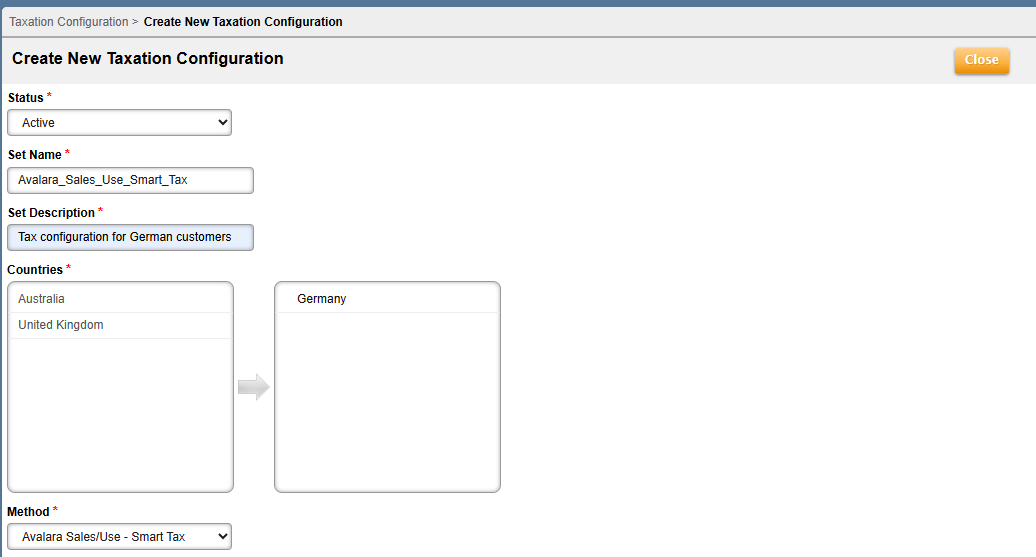
Avalara Sales/Use - Smart Tax
Aria partners with Avalara to support businesses worldwide, providing tax support and optimal processing capability across an array of industry verticals seeking a dynamic solution to address diverse taxation needs and requirements. Avalara is part of Aria's Smart Tax integration using the latest technology to provide the optimum level of taxation support for you and your customers.
Before You Begin
Make sure you have performed all the tasks described in Set Up Taxes.
Configuring Avalara Sales/Use - Smart Tax
- Click New to set up an Avalara-specific taxation configuration.
- Fill in all the required fields of a new taxation configuration (i.e. Status, Set Name, Set Description, and Countries).
For additional information, reference Create Taxation Configuration.
Note: Selected countries (in the right column) are the only countries that are included for taxing in the Avalara integration. All other countries (in the left column), are either taxed using another taxation method, or are not subject to any taxes.
- Choose Avalara Sales/Use - Smart Tax from the Method drop-down.
Tax Group Configuration
This section appears as shown:

Complete each section within the Tax Group Configuration based on the tax groups chosen. See below for information on what input is required for each section.
- Account Number: Enter the account number to link to for the tax groups listed. Note: This must be the same account number for all tax groups listed.
- License Key: Enter the license key to link to for the tax groups listed. Note: This must be the same license key for all tax groups listed.
- Company Code: Enter the company code to link to for the tax groups listed. Note: This must be the same company key for all tax groups listed.
- Item Code: Enter the GL Code to which the taxes for the tax groups listed will be mapped. Note: This must be the same code for all tax groups listed.
- Service Location: Select the associated service location for each tax group. The service location can be used to calculate tax. Refer to Determining Avalara Tax Location for more information.
- Tax Code: Enter the specific Avalara tax code for each tax group listed. For example, the Avalara tax code for SaaS is SW052000 and is P0000000 for Tangible Property. Provided below is a link to a complete list of Avalara tax codes.
Tax Configuration Values
This section appears as shown: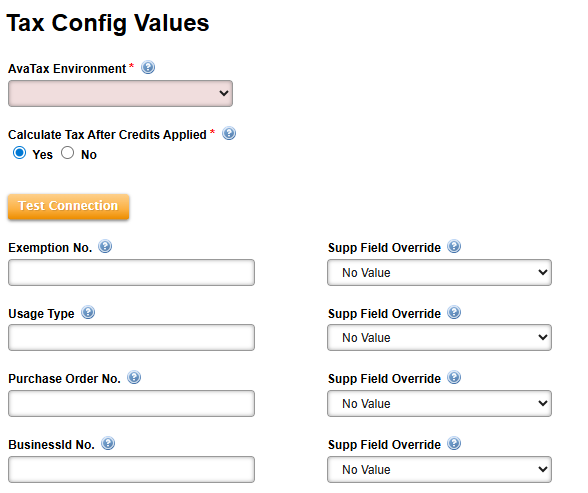
Configure the Tax Configuration Values section based on the tax groups chosen. For additional information on inputs to provide for each field, see below.
Note: The Tax Config Value fields are at the client level. If any information must be passed at the account level instead, configure account supplemental fields and use the Supp Field Override field.
- AvaTax Environment: Select Sandbox, Production or blank (required).
- Calculate Tax After Credits Applied: Allowable values are as follows (required):
- Yes: Calculate tax based on net charges after credits or discounts have been applied to a transaction.
- No: Calculate tax based on the gross purchase amount, regardless of any subsequent credits or discounts applied to the transaction.
- Test Connection: Press this button to test a new taxation configuration. When the connection test passes, the '_Success_' message is shown at the top of the page. When the connection test fails, the '_Connection failed. Please check credentials for tax group “
”_' is shown at the top of the page. This feature helps to ensure that the connection is properly configured to prevent failure of invoice processing. - ExemptionNo: Any value entered in the exemption number configuration field indicates that ALL accounts are tax exempt and no accounts are taxed.
If you have individual accounts that are tax exempt, choose Tax Exemption Number from the corresponding Supp Field Override drop-down and follow the "Configuring Tax Exemption and VAT ID per Account" instructions below.
- Usage Type: Enter the client application customer or usage type.
- Purchase Order No: Enter the buyer's purchase order identifier.
- BusinessId No: Any value entered in the BusinessIdNo configuration field indicates that ALL accounts have the same Vat ID.
If you have individual international accounts, choose VAT ID from the corresponding Supp Field Override drop-down and follow the "Configuring Tax Exemption and VAT ID per Account" instructions below.
Note: If you have any accounts that are tax exempt or international, you must set up corresponding account supplemental fields prior to your Avalara configuration (see prerequisite above). In this case, do not enter a value for the ExemptionNo or BusinessIDNo fields and use the supp field overrides.
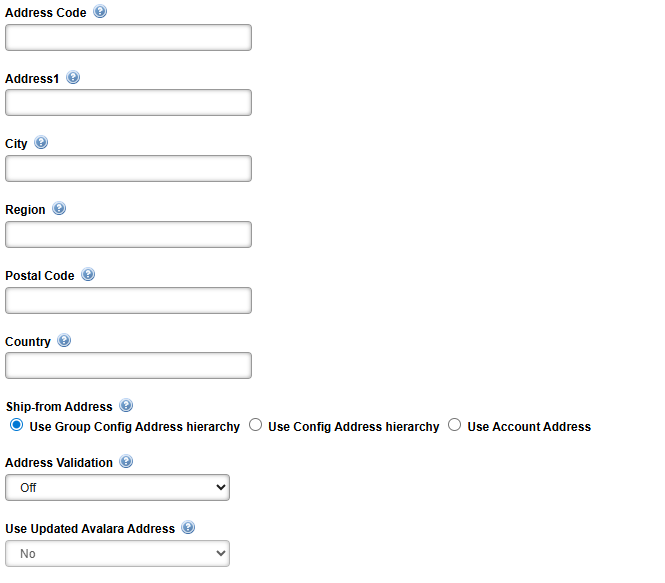
- Address Code: Enter the geocode or another location-specific code as applicable.
- Address1: Enter the street address (e.g., house number and street or apartment location with number and street).
- City: Enter the city of the address.
- Region: Enter the region (e.g., state or province) of the address.
- Postal Code: Enter the zip code (usually ZIP + 4) on the USPS website.
- Country: Enter the country of the address.
- Ship-From Address: Select the shipping address to use when sending tax requests to Avalara. The Ship-From address can be the address associated with the plan instance or line item configuration, the address set in the tax integration configuration, or the accountable tax address associated with the customer account. If an address is not configured for your given option, the next address option will be used. The following options are available:
- Use Group Config Address hierarchy (default)
- Use Config Address hierarchy
- Use Account Address
- Address Validation: Choose whether to enable or disable automatic address validation during tax calculations (select On from the drop-down list to enable the Use Updated Avalara Address field). This ensures accuracy in taxation when the validated taxable address is returned from Avalara's Address Validation API; the validated address is stored in the Aria account. This applies to addresses in the U.S. and Canada.
- Use Updated Avalara Address: Choose whether to use and store the corrected address returned by Avalara after validation.
Note: Country eligibility is determined before the validation process. If validation fails or is unsuccessful, the original address provided is used, ensuring uninterrupted processing.
Press Save to retain your selections.
Configuring Tax Exemption and VAT ID per Account
Getting Here: Click Accounts > Select an account > Account Overview > Client-Defined Fields
- Click Edit next to the Tax Exemption Number field.

- Enter a new tax exemption number for the specific account in the Field Value(s) field and click Add New or select an existing value from the list to modify and click Edit.

- Click Save.
Complete the same steps for the VAT ID account field.