

Account Status
Account Status
The Account Status is displayed to the right of the account holder name on the Account Overview page. The account status is indicated in a colored status bubble indicating if the account is Registered Pending Activation, Active, Deactivated, Archived, Permanent, or on a Temporary Service Ban.

Click on the Account Status bubble. A pop-out displaying details about the current account status is displayed.
To change the account status, select the Change Account Status button in the upper right corner of the pop-out.

This will open an account status pop-out where you can select the status the account needs to be changed to along with the options to create a queued status change and alter the billing dates.
There is a Comments field where you can make notes about the status change reasoning or effective date. Comments are especially useful for creating an audit trail and for reporting purposes.
When the account status changed have been made, click the Update Account Status button at the bottom of the pop-out.

If a queued status change is created, an icon will appear next to the account status on the Account Overview page. Hover over this alert icon to display the queued status change date and details.

To cancel a queued account status change, click on the status bubble again and select the dropdown arrow next to the Change Account Status button. Select Remove Queued Status Change Request.

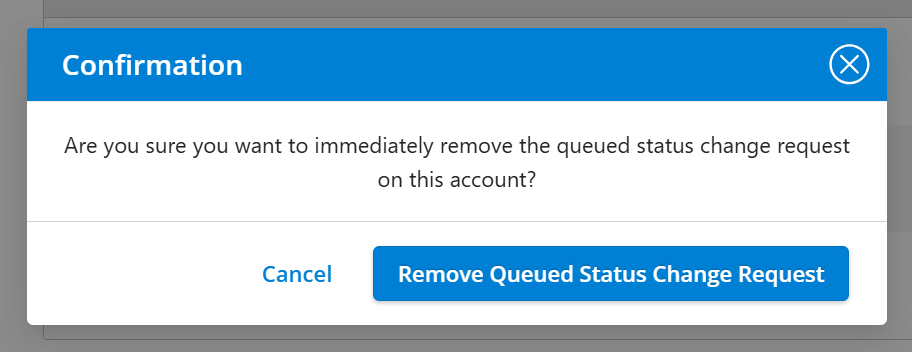
A confirmation pop-up will open prompting you to complete or cancel the deletion of the queued account status change. Select Remove Queued Status Change Request to deleted the queued change.
Your queued account status change has been deleted.
To learn more about Account Statuses, visit the Aria Billing Cloud Account Statuses page.