

Activity Log
Activity Log Overview
The Activity Log in Aria Allegro records two types of operational activity: actions performed by users in the Allegro UI (User Activity Log) and API calls made through external integrations (API Activity Log). Use the Activity Log to audit configuration changes, verify that a specific action occurred, or investigate unexpected data states.
To access the Activity Log:
- Click the Usage switch in the navigation pane.
- Expand Operations in the left navigation menu.
- Click Activity Log.
The Activity Log opens with two tabs: User Activity and API Activity.
User Activity Log
Overview
The User Activity Log records all add, modify, and delete actions that users perform on configuration and pricing objects in the Allegro UI. For each recorded action, the log captures the user who performed the action, the date and time of the action, and a before/after JSON snapshot of the affected object. These snapshots let you see exactly what data existed before a change and what the object looks like after the change.
The User Activity Log records changes to the following object types:
- Currencies
- Accumulators
- Allowances
- Usage types
- Service types
- Billable services
- Multi-rate usage configurations
- Rate units and rate unit maps
- Time units and zone units
- Source platforms
- Usage file maps
- Mediation aggregations
- Aggregate monetized usage
- Price offers
- System properties
Note: The User Activity Log records changes to configuration and pricing objects only. Actions on usage transactions and billing operations are not included in this log.
Access the User Activity Log
- Click the Usage switch in the navigation pane.
- Expand Operations in the left navigation menu.
- Click Activity Log.
- Click the User Activity tab.
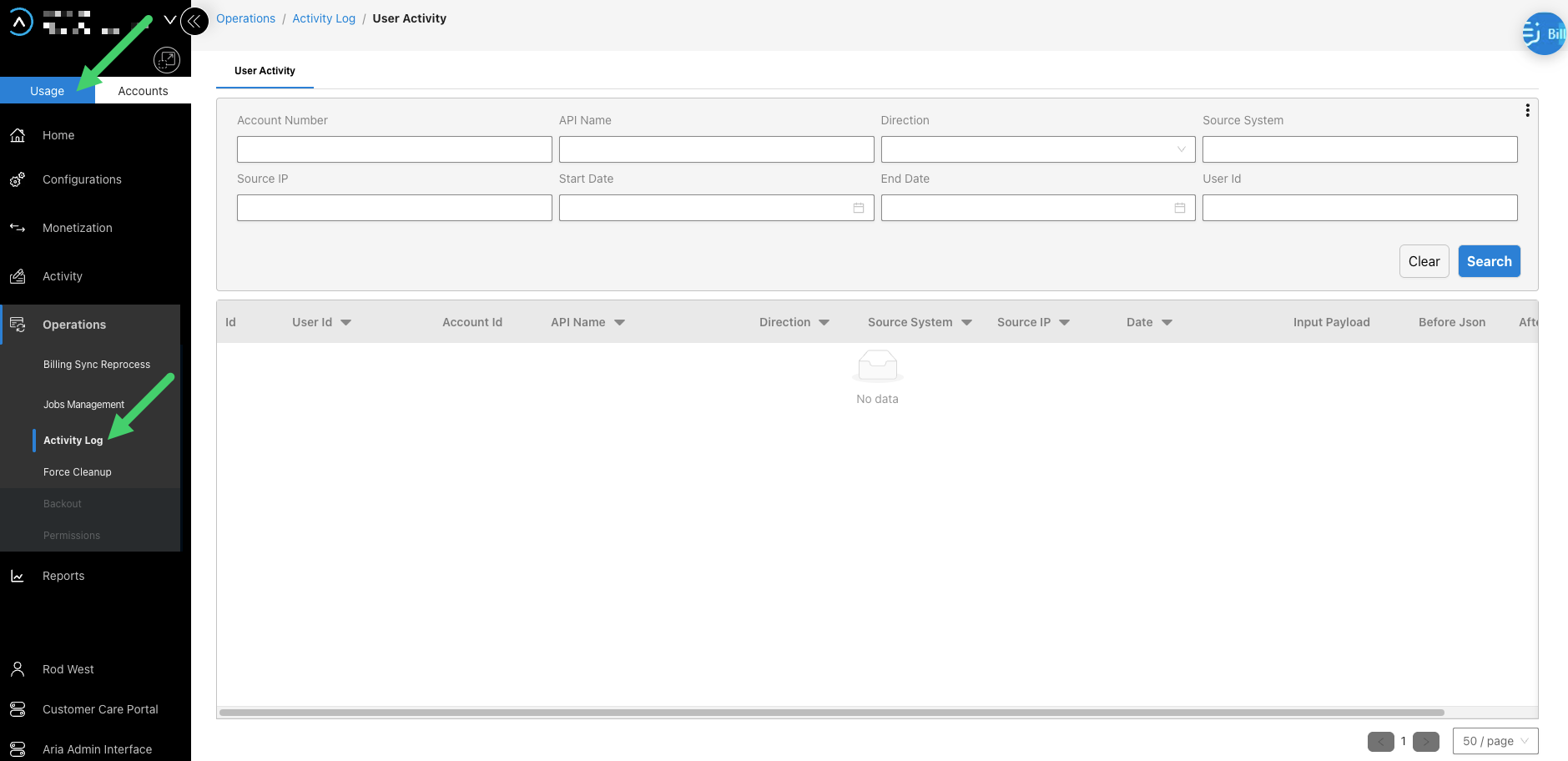
Search and filter user activity
Use the search and filter options at the top of the User Activity Log to narrow results by specific criteria. After setting your filters, click Search to apply them. Click Clear to reset all filters and return to the full list.
View activity details
To view the full detail of a logged action, click the entry in the activity list. The detail view displays the following information:
| Field | Description |
|---|---|
| User | The user who performed the action. |
| Activity Date | The date and time the action was recorded. |
| API Name | The API call associated with the action. |
| Source IP | The IP address from which the action originated. |
| Source System | The system from which the request originated. |
| Before | A JSON snapshot of the object before the action. Empty for add actions. |
| After | A JSON snapshot of the object after the action. Empty for delete actions. |
The before and after JSON panels display structured, formatted content. Compare the two panels side by side to identify the specific fields that changed.
API Activity Log
Overview
The API Activity Log records all API calls made to Aria Allegro through external integrations, the API Gateway, and the Aria Allegro MCP Server. Use the API Activity Log to audit integration activity, troubleshoot API errors, or review API call patterns across your connected systems. The log captures both successful API calls and failed attempts resulting from authentication errors or rate-limit violations.
Note: Internal API calls generated by Allegro system processes are not included in the API Activity Log.
Access the API Activity Log
- Click the Usage switch in the navigation pane.
- Expand Operations in the left navigation menu.
- Click Activity Log.
- Click the API Activity tab.
Search and filter API activity
Use the search and filter options at the top of the API Activity Log to narrow results by specific criteria. After setting your filters, click Search to apply them. Click Clear to reset all filters and return to the full list.
View API activity details
To view the full detail of a logged API call, click the entry in the activity list. The detail view displays the following information:
| Field | Description |
|---|---|
| User / Partner | The identity associated with the API call, as validated by the API Gateway. |
| Activity Date | The date and time the API call was recorded. |
| API Name | The name of the API operation called. |
| Source System | The source of the call—external integration, API Gateway, or MCP Server. |
| Direction | The direction of the API call (inbound or outbound). |
| Status | The result of the API call. Includes successful responses and error codes such as HTTP 401 (unauthorized) and HTTP 429 (rate limit exceeded). |