

Billing Sync Reprocess
- Overview
- Catalog Sync
- Account Sync
- Aggregated Usage Sync
- Job Schedule Management
Overview
The Billing Sync Reprocess module lets you view, review, reprocess, and discard synchronization activity records that pass between Aria Billing Cloud and Aria Allegro. Use this module to monitor sync health and resolve errors for the following data types:
- Catalog sync data—from Aria Billing Cloud to Aria Allegro
- Account sync data—from Aria Billing Cloud to Aria Allegro
- Aggregated usage records—from Aria Allegro to Aria Billing Cloud
Note: Sync errors most commonly result from configuration issues introduced during initial setup or deployment. Resolve configuration problems at their source before reprocessing failed records.
Catalog Sync
The Catalog Sync activity log tracks Data Feed messages related to Aria product catalog items synchronized to Aria Allegro. Catalog sync covers the following object types:
- Usage Type—create and update messages for usage types
- Services—create and update messages for activation, recurring, and usage services defined as billable services in Aria Allegro
- Plan, Plan Rate Schedule, Plan Services, and Rates—each unique combination of plan, plan rate schedule, and plan services creates a price offer in Aria Allegro
View Catalog Sync Activity
To view the Catalog Sync activity log:
- Click the Usage toggle in the navigation pane.
- Click Billing Sync Reprocess to expand its submenu.
- Click Catalog.
- Click the Activity tab.
The activity log displays all catalog sync records with the most recent records first.

View Catalog Sync Activity Details
To view details for a specific catalog sync record:
- View the Catalog Sync activity log as described above.
- Click the ID link for a record to open a detail drawer.
The drawer displays:
- Header attributes with key audit trail information for the message
- Event Payload—the full JSON payload sent from Aria Billing Cloud for the activity. You can copy the payload into a JSON formatting tool for easier review. The payload format varies by object type.
Activity Log Status Values
| Status | Description |
|---|---|
| COMPLETE | Aria Allegro processed the record successfully. |
| ERROR | The record failed processing in Aria Allegro. An error code and error message accompany the record. |
| IGNORED | Aria Allegro ignored the record. This occurs when Data Feed configuration sends messages for data that Aria Allegro excludes. Adjust the Aria Billing Cloud Data Feed configuration to prevent these records. |
| INCOMPLETE | Reserved status that does not appear in standard activity logs. |
| PENDING | Aria Allegro has not yet processed the record. This is a transient state that rarely appears. |
| DISCARDED | The record was manually discarded and will not be reprocessed. Discarded records do not appear in search results unless you explicitly select DISCARDED in the Status filter. |
Filter Catalog Sync Activity
The activity log defaults to the most recent records first. Use the following filters to narrow your results:
| Filter | Description |
|---|---|
| Aria Sync Id | Enter the exact Aria sync ID. |
| Action | Enter the exact action associated with the Aria Billing Cloud payload. |
| Error Code | Enter the full error code to find specific errored records. |
| Event Id | Enter the exact event ID assigned by Aria Billing Cloud. |
| Object Type | Enter the exact number associated with the object type from Aria Billing Cloud. |
| Action Name | Enter a partial action name (case-insensitive). |
| Object Name | Enter a partial object name (case-insensitive). |
| Status | Select an exact status from the dropdown. |
Sort Catalog Sync Activity
| Sort Attribute | Description |
|---|---|
| Id | Sort ascending or descending by activity log ID. |
| Status | Sort ascending or descending by status. |
| Action Name | Sort ascending or descending by action name. |
| Object Name | Sort ascending or descending by object name. |
Reprocess Catalog Sync Errors
You can reprocess catalog sync records that failed during synchronization. If reprocessing succeeds, the record is removed from the Reprocess Summary view.
View the Catalog Reprocess Summary
The Reprocess Summary provides three levels of drill-down for catalog sync errors:
- Summary level—one row per unique combination of object name and action
- Error Summary level—one row per error code and message under the same object name and action
- Activity level—individual failed records for the same object name, action, error code, and error message
To view the Catalog Reprocess Summary:
- Click the Usage toggle in the navigation pane.
- Click Billing Sync Reprocess to expand its submenu.
- Click Catalog.
- Click the Reprocess Summary tab.
The summary table displays one row per grouping of object name, error code, error message, and action. Each row includes:
- Object Name—name of the object sent by Aria Billing Cloud
- Action Name—name of the action sent by Aria Billing Cloud
- Error Code—error code generated by Aria Allegro. Hover over or expand the field to view the full code.
- Error Message—message associated with the error code. Hover over or expand the field to view the full message.
- Count—number of records that errored for the object and action
To drill down to the Error Summary level, click the maximize icon to the left of a row. To view individual activity records, click the Object Name link. Each individual record shows the object type, action, event ID, event time, event payload, error number, SCN number, and status.



Reprocess Catalog Sync Errors
You can reprocess catalog sync errors at multiple levels. After you resolve the underlying error condition, use the appropriate level below:
- Reprocess all—click Reprocess in the header to reprocess all errors in the summary.
- Reprocess at Summary level—select an object and action name row, then click Reprocess.
- Reprocess at Error Summary level—expand a summary row using the maximize icon, then click Reprocess for a specific error code.
- Reprocess at Activity level—click an object name to open the activity drawer, then click Reprocess for a specific record.
After each reprocess action, the UI refreshes to remove successfully reprocessed records at that level.
Common Catalog Sync Errors
| Error Code | Cause | Resolution |
|---|---|---|
| BILLABLE_SERVICE_NOT_FOUND | A plan, plan rate schedule, or related message references a service that has not synchronized to Aria Allegro. | Save the service again in Aria Billing Cloud to trigger re-synchronization. Associate the service type with the billable service, then reprocess the failed sync record. |
| SERVICE_NUM_NOT_FOUND | A plan, plan rate schedule, or related message references a service number from Aria Billing Cloud that does not exist in Aria Allegro. | Save the service again in Aria Billing Cloud to trigger re-synchronization. Associate the service type with the billable service, then reprocess the failed sync record. |
| PRICE_OFFER_IS_NOT_FOUND | A plan modification message arrived, but the original plan configuration has not synchronized. | Resolve any errors in the original plan configuration, then reprocess the data feed record. |
| GATEWAY_OBJECT_TYPE_IS_NOT_FOUND | The gateway object type configuration is missing for the specified object type in the data feed. | Add the missing configuration for the object type in the gateway sync object settings, then reprocess. |
| ADVANCED_USAGE_PRICING_FLAG_NOT_SET | Advanced usage pricing setup is incomplete or inconsistent. | If you use Aria tiered customized rates with TIERED pricing in Aria Allegro only, set Usage Custom Rates From Billing to True under Configurations > System Properties > Usage Processing in Aria Allegro, and do not select the Advanced usage pricing flag in Aria Billing Cloud. If you use Aria Allegro pricing models without custom pricing, set the property to False (default) and enable the Advanced Usage Pricing flag for the plan. Adjust the configuration and reprocess. |
| PLAN_RATE_SCHEDULE_NOT_FOUND | The plan rate schedule object does not exist in Aria Allegro for the given schedule number. | Synchronize the Plan Data Feed message first, then reprocess the errored feed. |
| PROCESS_NOT_DEFINED_FOR_GATEWAY_OBJECT_TYPE | A data feed is enabled for an object type in Aria Billing Cloud that Aria Allegro does not support. | Review and correct the data feed enablement configuration in Aria Billing Cloud. If the feed is required, contact your customer support representative to discuss prioritization. |
| SYNC_EVENT_IS_NOT_FOUND | No sync record exists in the database for the given event ID. | Resolve the error at its source, then reprocess. |
| SYNC_EVENT_NOT_VALID_FOR_ERROR_PROCESS | The sync record status is COMPLETE or IGNORED. Reprocessing as an error is not valid. | Disable the data feed for the event in the Aria Billing Cloud Data Feed enablement configuration and ignore the record. If the feed is required, contact your customer support representative. |
Discard Catalog Sync Records
You can discard catalog sync error records that you have determined will not be reprocessed. Discarding a record marks its status as DISCARDED permanently.
When to Discard a Catalog Sync Record
Discard a catalog sync record when any of the following conditions apply:
- The error is non-recoverable—for example, the source data in Aria Billing Cloud no longer exists or is no longer relevant.
- The record is obsolete because a subsequent update has already synchronized successfully.
- You have reviewed the error and confirmed that reprocessing is not required.
How to Discard Catalog Sync Error Records
To discard catalog sync error records:
- Click the Usage toggle in the navigation pane.
- Click Billing Sync Reprocess to expand its submenu.
- Click Catalog.
- Navigate to the Reprocess Summary tab or the Activity tab to locate the records to discard.
- Use the discard level appropriate for the scope of records you want to remove:
- Discard at Summary level—select an object and action name row, then click Discard.
- Discard at Error Summary level—expand the summary row using the maximize icon, then click Discard for a specific error code.
- Discard at Activity level—click an object name to open the activity drawer, then click Discard for a specific record.
Effect of Discarding a Catalog Sync Record
- The record status updates to DISCARDED.
- Discarded records are excluded from all default UI searches. To view discarded records, select DISCARDED from the Status filter in the Activity search view.
- Discarded records are not included in any reprocess actions.
Account Sync
The Account Sync activity log tracks Data Feed messages related to account management activities synchronized from Aria Billing Cloud to Aria Allegro. Account data in Aria Allegro is read-only. All account changes must be made in Aria Billing Cloud or a connected CRM application, which then pushes the relevant data to Aria Allegro.
Account sync covers the following object types:
- Account—create and update messages for the account object
- Contact—create and update messages for account contact data, split into Contact and Address records in Aria Allegro
- Plan Instance, Plan Rate Schedule, Plan Services, and Rates—Aria Allegro creates corresponding subscription, balance unit, price unit, and billing profile objects for each plan instance
- Contract—reference data for plan transitions and rollovers that adjusts subscription data in Aria Allegro
View Account Sync Activity
To view the Account Sync activity log:
- Click the Usage toggle in the navigation pane.
- Click Billing Sync Reprocess to expand its submenu.
- Click Account.
- Click the Activity tab.
The activity log displays all account sync records with the most recent records first.

View Account Sync Activity Details
To view details for a specific account sync record:
- View the Account Sync activity log as described above.
- Click the ID link for a record to open a detail drawer.
The drawer displays:
- Header attributes with key audit trail information for the message
- Event Payload—the full JSON payload sent from Aria Billing Cloud for the activity. You can copy the payload into a JSON formatting tool for easier review. The payload format varies by object type.

Activity Log Status Values
| Status | Description |
|---|---|
| COMPLETE | Aria Allegro processed the record successfully. |
| ERROR | The record failed processing in Aria Allegro. An error code and error message accompany the record. |
| IGNORED | Aria Allegro ignored the record. This occurs when Data Feed configuration sends messages for data that Aria Allegro excludes. Adjust the Aria Billing Cloud Data Feed configuration to prevent these records. |
| INCOMPLETE | Reserved status that does not appear in standard activity logs. |
| PENDING | Aria Allegro has not yet processed the record. This is a transient state that rarely appears. |
| DISCARDED | The record was manually discarded and will not be reprocessed. Discarded records do not appear in search results unless you explicitly select DISCARDED in the Status filter. |
Filter Account Sync Activity
The activity log defaults to the most recent records first. Use the following filters to narrow your results:
| Filter | Description |
|---|---|
| Aria Sync Id | Enter the exact Aria sync ID. |
| Account Number | Enter the account number to search for a specific account. |
| Action | Enter the exact action associated with the Aria Billing Cloud payload. |
| Error Code | Enter the full error code to find specific errored records. |
| Event Id | Enter the exact event ID assigned by Aria Billing Cloud. |
| Object Type | Enter the exact number associated with the object type from Aria Billing Cloud. |
| Action Name | Enter a partial action name (case-insensitive). |
| Object Name | Enter a partial object name (case-insensitive). |
| Status | Select an exact status from the dropdown. |
Sort Account Sync Activity
| Sort Attribute | Description |
|---|---|
| Id | Sort ascending or descending by activity log ID. |
| Status | Sort ascending or descending by status. |
| Action Name | Sort ascending or descending by action name. |
| Object Name | Sort ascending or descending by object name. |
Reprocess Account Sync Errors
You can reprocess account sync records that failed during synchronization. If reprocessing succeeds, the record is removed from the Reprocess Summary view.
View the Account Reprocess Summary
The Reprocess Summary provides three levels of drill-down for account sync errors:
- Summary level—one row per unique combination of object name and action
- Error Summary level—one row per error code and message under the same object name and action
- Activity level—individual failed records for the same object name, action, error code, and error message
To view the Account Reprocess Summary:
- Click the Usage toggle in the navigation pane.
- Click Billing Sync Reprocess to expand its submenu.
- Click Account.
- Click the Reprocess Summary tab.
The summary table displays one row per grouping of object name, error code, error message, and action. Each row includes:
- Object Name—name of the object sent by Aria Billing Cloud
- Action Name—name of the action sent by Aria Billing Cloud
- Error Code—error code generated by Aria Allegro. Hover over or expand the field to view the full code.
- Error Message—message associated with the error code. Hover over or expand the field to view the full message.
- Count—number of records that errored for the object and action
To drill down to the Error Summary level, click the maximize icon to the left of a row. To view individual activity records, click the Object Name link. Each individual record shows the object type, action, event ID, event time, event payload, error number, SCN number, and status.


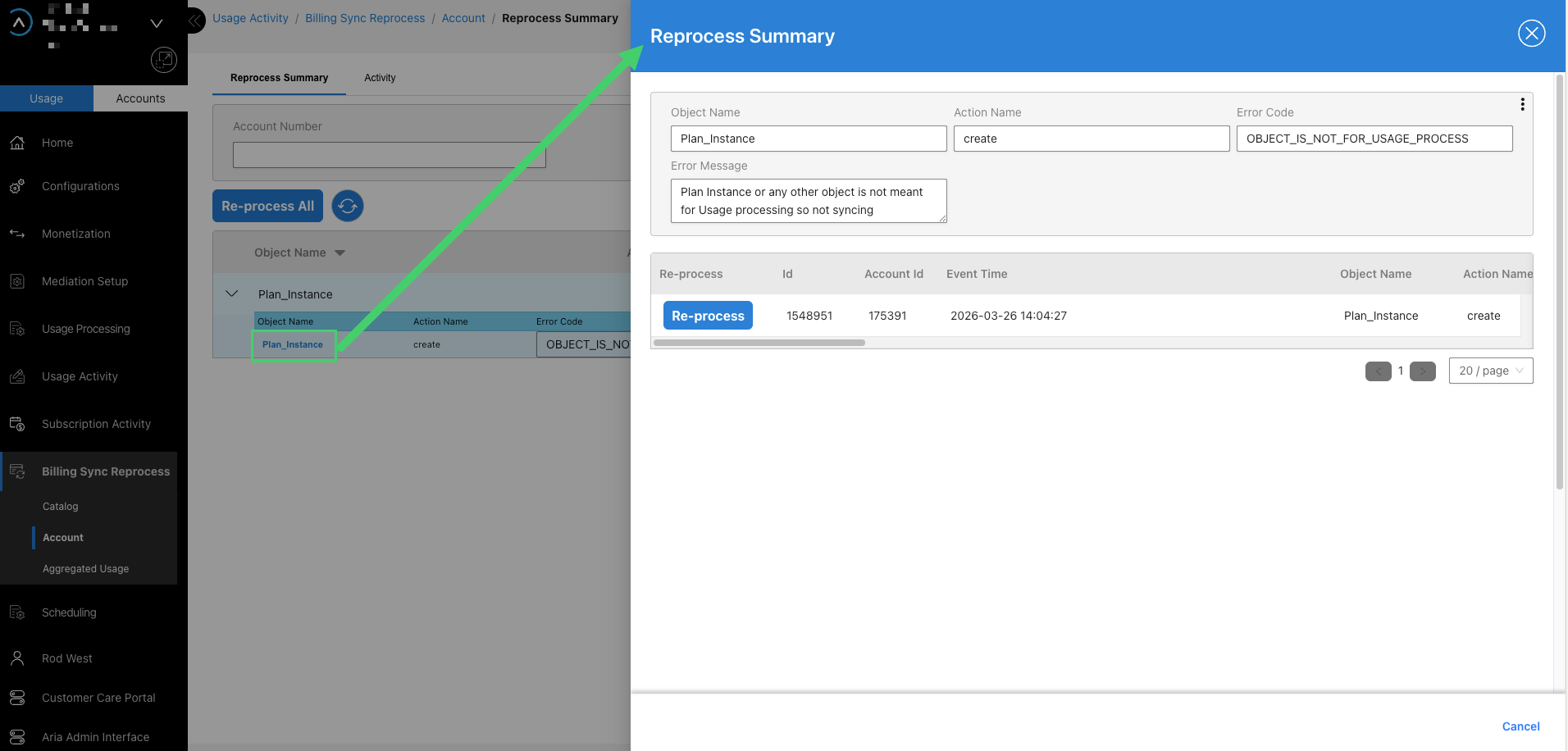
Reprocess Account Sync Errors
You can reprocess account sync errors at multiple levels. After you resolve the underlying error condition, use the appropriate level below:
- Reprocess all—click Reprocess in the header to reprocess all errors in the summary.
- Reprocess at Summary level—select an object and action name row, then click Reprocess.
- Reprocess at Error Summary level—expand a summary row using the maximize icon, then click Reprocess for a specific error code.
- Reprocess at Activity level—click an object name to open the activity drawer, then click Reprocess for a specific record.
After each reprocess action, the UI refreshes to remove successfully reprocessed records at that level.
Common Account Sync Errors
| Error Code | Cause | Resolution |
|---|---|---|
| PROCESS_NOT_DEFINED_FOR_GATEWAY_OBJECT_TYPE | A data feed is enabled for an object type in Aria Billing Cloud that Aria Allegro does not support. | Review and correct the data feed enablement configuration in Aria Billing Cloud. If the feed is required, contact your customer support representative to discuss prioritization. |
| SYNC_EVENT_IS_NOT_FOUND | No sync record exists in the database for the given event ID. | Resolve the error at its source, then reprocess. |
| SYNC_EVENT_NOT_VALID_FOR_ERROR_PROCESS | The sync record status is COMPLETE or IGNORED. Reprocessing as an error is not valid. | Disable the data feed for the event in the Aria Billing Cloud Data Feed enablement configuration and ignore the record. If the feed is required, contact your customer support representative. |
| PARENT_PRICE_UNIT_IS_NOT_FOUND | An Add-On or Supplemental plan instance message arrived, but no master plan instance exists for the account in Aria Allegro. | Synchronize the parent Plan Instance Data Feed message first, then reprocess this error. |
| BILLING_STATUS_CODE_IS_NOT_MAPPED | No mapping exists in Aria Allegro for the status code received from Aria Billing Cloud. | Contact your customer support representative to add the status code mapping, then reprocess the record. |
| USAGE_TYPE_NOT_FOUND | A usage type from the plan instance does not exist in Aria Allegro. | Reprocess the errored usage type catalog data feed, or re-synchronize the usage type from Aria Billing Cloud. Ensure the plan catalog data feed has also synchronized correctly, then reprocess. |
| RESPONSIBLE_PLAN_INSTANCE_IS_NOT_FOUND | The responsible plan instance ID or its subscription was not found in Aria Allegro. | Synchronize the Responsible Plan Instance create message first, then reprocess. |
| ACCOUNT_IS_NOT_FOUND | The account does not exist in Aria Allegro for the given account ID. | Synchronize the account create message first, or reprocess the account create message if it is in error. Then reprocess the errored record. |
| PLAN_INSTANCE_PRICE_UNIT_IS_NOT_FOUND | Price units do not exist for the given plan instance. This can occur when modifying a plan instance if the create plan instance message has not synchronized. | Synchronize or reprocess the Plan Instance create message first, then reprocess this record. |
| PLAN_INSTANCE_BILLING_ATTRIBUTES_NOT_FOUND | Required billing attributes are missing from the plan instance message. | Reprocess the record to clear this error. |
| BILLING_PROFILE_OBJECT_NOT_CREATED | A plan instance modification message arrived, but the billing profile does not exist in Aria Allegro. | Synchronize or reprocess the plan instance create message, then reprocess this record. |
| USAGE_CUSTOM_RATES_FROM_BILLING_FLAG_NOT_SET | The plan instance has customized rates, but the Custom Rates property is not enabled in Aria Allegro. | Use the TIERED pricing model in Aria Allegro for customized rates. Enable the Usage Custom Rates From Billing property under Configurations > System Properties > Usage Processing. Ensure the Advanced Usage pricing flag is not selected for the plans. Adjust the configuration and reprocess. |
| ERROR_BUILDING_TIERS_FROM_CUSTOM_RATES_FROM_BILLING | A mapping error occurred while processing customized usage rates into tiered pricing. | Review the price-offer tiered pricing configuration and the customized tier rates for the plan instance, adjust as needed, then reprocess. |
| SUBSCRIPTION_IS_NOT_FOUND | No subscription exists for the given account ID. Aria Allegro creates subscriptions only with master plan instances. | Synchronize or reprocess the Contract or Plan Instance create message first, then reprocess this record. |
| OBJECT_IS_NOT_FOR_USAGE_PROCESS | The plan instance or object is not configured for usage processing. | Verify that the Advanced Usage pricing flag is set correctly in Aria Billing Cloud and that the Usage Custom Rates From Billing property is configured appropriately in Aria Allegro. The master plan must include at least one usage type. If the plan hierarchy does not require usage processing, ignore this record. |
Discard Account Sync Records
You can discard account sync error records that you have determined will not be reprocessed. Discarding a record marks its status as DISCARDED permanently.
When to Discard an Account Sync Record
Discard an account sync record when any of the following conditions apply:
- The error is non-recoverable—for example, the account or plan instance no longer exists in Aria Billing Cloud.
- The record is obsolete because a subsequent update has already synchronized successfully.
- You have reviewed the error and confirmed that reprocessing is not required.
How to Discard Account Sync Error Records
To discard account sync error records:
- Click the Usage toggle in the navigation pane.
- Click Billing Sync Reprocess to expand its submenu.
- Click Account.
- Navigate to the Reprocess Summary tab or the Activity tab to locate the records to discard.
- Use the discard level appropriate for the scope of records you want to remove:
- Discard at Summary level—select an object and action name row, then click Discard.
- Discard at Error Summary level—expand the summary row using the maximize icon, then click Discard for a specific error code.
- Discard at Activity level—click an object name to open the activity drawer, then click Discard for a specific record.
Note: For Account sync, you can further scope a discard operation to a specific account by using the Account Number filter before discarding.
Effect of Discarding an Account Sync Record
- The record status updates to DISCARDED.
- Discarded records are excluded from all default UI searches. To view discarded records, select DISCARDED from the Status filter in the Activity search view.
- Discarded records are not included in any reprocess actions.
Aggregated Usage Sync
The Aggregated Usage Sync view tracks the status of aggregated usage record batches that Aria Allegro sends to Aria Billing Cloud. Aggregation runs automatically on the schedule configured in your aggregation frequency settings. This view displays only incomplete batches—those that are still in process or have errors.
View Aggregated Usage Errored Batches
To view incomplete or errored aggregated usage batches:
- Click the Usage toggle in the navigation pane.
- Click Billing Sync Reprocess to expand its submenu.
- Click Aggregated usage.
The view lists all incomplete batches. Each row represents one aggregated batch.

View Incomplete Batch Details
Each row in the batch list shows the following summary information:
- Start Date/Time—start of the aggregated batch based on the configured aggregation frequency
- End Date/Time—end of the aggregated batch
- Total Count—total number of records in the batch
- Completed Count—number of records processed successfully by Aria Billing Cloud
- Error Count—number of records that failed processing
- Pending Count—number of records pending processing
To drill down to the Error Summary level, click the maximize icon to the left of a row. The expanded view shows:
- Total Count—number of incomplete records in the batch
- Sync Error Code—blank for pending records, or the error code for errored records
- Sync Error Message—message corresponding to the error code
- Status—status of the records in that row
To view the individual records for a specific error code and status, use the Aggregated batch, Error Code, and Status filters in the Billing Aggregated Usage Records view.

Batch Status Values
| Status | Description |
|---|---|
| COMPLETE | Aria Billing Cloud processed the record successfully. |
| ERROR | The record failed processing. An error code and error message accompany the record. |
| IGNORED | The record was ignored. Adjust the Aria Billing Cloud Data Feed configuration to prevent these records. |
| INCOMPLETE | Reserved status that does not appear in standard activity logs. |
| PENDING | The record has not yet been processed. This is a transient state. |
Filter Aggregated Usage Activity
| Filter | Description |
|---|---|
| Start Date | Filter to batches on or after this date at 00:00:00. |
| End Date | Filter to batches before this date at 00:00:00. |
| Sync Status | Select an exact status from the dropdown. |
Sort Aggregated Usage Activity
| Sort Attribute | Description |
|---|---|
| Id | Sort ascending or descending by activity log ID. |
| Status | Sort ascending or descending by status. |
| Action Name | Sort ascending or descending by action name. |
| Object Name | Sort ascending or descending by object name. |
Reprocess Incomplete Aggregated Usage Batches
You can reprocess incomplete aggregated usage batches at multiple levels. After you resolve the underlying error condition, use the appropriate level below:
- Reprocess all—click Reprocess in the header to reprocess all incomplete batches.
- Reprocess at Batch level—select a batch row, then click Reprocess at the row level.
- Reprocess at Error Summary level—expand a batch row using the maximize icon, then click Reprocess for a specific error code and status combination.
After each reprocess action, the UI refreshes to remove successfully reprocessed records at that level.
Discard Aggregated Usage Sync Records
You can discard aggregated usage sync error records that you have determined will not be reprocessed.
When to Discard an Aggregated Usage Sync Record
Discard an aggregated usage sync record when any of the following conditions apply:
- The error is non-recoverable—for example, the usage data is no longer valid or has been superseded.
- The batch is obsolete and reprocessing is not required.
- You have reviewed the error and confirmed it is safe to discard without reprocessing.
How to Discard Aggregated Usage Sync Error Records
To discard aggregated usage sync error records:
- Click the Usage toggle in the navigation pane.
- Click Billing Sync Reprocess to expand its submenu.
- Click Aggregated usage.
- Locate the batch to discard.
- Use the discard level appropriate for the scope of records you want to remove:
- Discard at Batch level—select the batch row, then click Discard at the row level.
- Discard at Error Summary level—expand the batch row using the maximize icon, then click Discard for a specific error code and status combination.
Effect of Discarding an Aggregated Usage Sync Record
- The record status updates to DISCARDED.
- Discarded records are excluded from all default UI searches.
- Discarded records are not included in any reprocess actions.
Job Schedule Management
The Job Schedule Management module lets you view, run, and manage Aria Allegro job schedules. Job schedules coordinate the billing and sync activity that Aria Allegro performs each day on behalf of your customers. Understanding job schedule status is essential for diagnosing billing errors and ensuring sync activity completes before Aria Billing Cloud runs its daily batch jobs.
About Job Schedules
A job schedule defines the set of jobs that Aria Allegro executes each day. Each scheduled date generates work items—one per account or task—that the job processes in sequence. Common jobs in an Aria Allegro job schedule include:
- Billing job—grants recurring allowances and accumulators for customers billed on that day and handles term-end true-up calculations for commitment-based customers.
- Bill-time usage job—executes the second pass of 2-pass (volume) rating for accounts on their anniversary date.
- Billing Sync job—synchronizes pending and error monetized usage records to Aria Billing Cloud using the bulk_record_usage_m API.
View Job Schedules
To view job schedules:
- Click the Usage toggle in the navigation pane.
- Click Process and Operations to expand its submenu.
- Click Job Schedule.
The Job Schedule view displays one row per scheduled date. Each row shows the schedule date, overall status, and counts for total, completed, pending, and error work items.

Job Schedule Status Values
| Status | Description |
|---|---|
| PENDING | The schedule has not yet started. Work items are queued. |
| PROCESSING | The schedule is actively running work items. |
| COMPLETED | All work items for the schedule date completed successfully. |
| ERROR | One or more work items failed. The schedule date requires attention. |
| CANCELED | The schedule was canceled before completing. |
| REPROCESSING | The schedule is reprocessing work items after an error correction. |
View Work Items for a Job Schedule
To view work items for a specific schedule date:
- View the Job Schedule list as described above.
- Click the Date link for a schedule to open the work item detail view.
The work item view shows one row per work item, typically one per account. Each row shows the account, job type, status, and any error details.
Run a Job Schedule
You can trigger a job schedule to run from the Aria Allegro UI when you need to run it manually outside of the automated daily trigger from Aria Billing Cloud.
To run a job schedule:
- View the Job Schedule list.
- Click Run Schedule to execute the job schedule for today’s date.
- Monitor the schedule status until it reaches COMPLETED or ERROR.
Note: In production environments, the Aria Billing Cloud daily batch process triggers the Aria Allegro job schedule automatically before running its own batch jobs. Run the schedule manually only when the automated trigger has not executed or when directed by your Aria representative.
Resolve Job Schedule Errors
When a job schedule reaches ERROR status, at least one work item failed. To resolve errors:
- Open the work item detail view for the schedule date with errors.
- Review the error code and message for each failed work item.
- Resolve the underlying cause. Most job schedule errors result from account sync issues, missing configuration, or billing data problems. Resolve the root cause before reprocessing.
- Click Reprocess for the failed work items, or click Reprocess All to retry all errors for the schedule date.
Clear a Job Schedule
You can clear all job schedule records for a specific date when a completed billing run needs to re-run—for example, when new accounts were onboarded after billing completed and need to be included in the same billing period.
Clearing a job schedule deletes all job schedule records, work items, and work unit payloads for the given date. This operation is irreversible. After you clear the schedule, re-trigger the billing job for that date through the normal job scheduling process.
To clear a job schedule using the Operations API, see Undo and Back Out Billing Activity in Aria Allegro and refer to the clearJobSchedule mutation.