

Account Subscription Data
Aria Allegro creates a subscription object for each Master Plan Instance linked to the account. There is no limit on the number of Master Plan Instances or subscriptions per account.
Key points about plan and subscription structure in Aria Allegro:
- Each account has one or more subscriptions, one per Master Plan Instance linked to the account.
- Each subscription includes one or more service units, based on service type mappings in billable services.
- Each service unit links to one or more service identifiers (also called service IDs, provisioning IDs, fulfillment IDs, or client plan instance IDs in core Aria). A service unit can have multiple service identifiers. For example, a B2B telecom contract might have a range of mobile numbers for a single subscription.
- Each service unit can have one or more price units. Price units apply to activation services, recurring services, and usage services.
- Status—Each Aria Allegro object has a status (Active, Inactive, or Closed/Cancelled). Usage processing depends on whether the object was Active at the usage date and time.
- Effective Date—Usage records and their start and end dates must fall within the effective dates of the respective objects.
Access Account Subscriptions
To access account subscription data:
- Search for and select the account. See Account Search.
- Click Subscription in the navigation pane. The activity pane opens with subscription-related tabs. The Subscription View tab appears by default.
Subscription View
The Subscription View tab lists the subscription, service unit, and price unit data for an account in a single table. Each row represents one price unit, along with the subscription and service unit that the price unit belongs to.
Key points for the subscription view:
- The tab opens with the Table View checkbox selected, displaying the data in the table described in this section.
- Use the status checkboxes above the table to filter which rows display: Active, Inactive, Closed/Cancelled, or All. Active rows correspond to Aria blue, inactive rows correspond to yellow, and closed or cancelled rows correspond to grey.
- The table includes the following columns: Subscription Id, Category, and Status for the subscription; Service Unit Id, View Audit, Type, and Status for the service unit; and Price Unit Id, View Audit, Status, Price Offer Id, Plan CD Id, Rate Plan CD Id, Usage Type CD Id, and Billable Service CD Id for the price unit.
- Click View in a View Audit column to open a history of status changes for that service unit or price unit. The history shows the status, reason, billing status, and effective date for each change.

Subscription Object Details
Click a Subscription Id link to open a drawer showing the subscription's details.
Key subscription attributes include:
- Category—The subscription's billing category (for example, POSTPAID).
- Initial Term and Initial Term Unit—The subscription's initial contract term for the account, expressed as a number and a unit (for example, 10 YEARS). This term is fixed when the contract is signed.
- Renewal Term and Renewal Term Unit—The contract term after the initial or subsequent renewal terms, also expressed as a number and a unit. The renewal term can change between renewal types over the life of the contract.
- Effective Date—The date the subscription becomes active.
- Status and Billing Status—The subscription's status, managed by core Aria.

Service Units
A subscription can include one or more service units. Aria Allegro creates service units using the unique service type associations from the Aria services linked to the master plan and any add-on or supplemental plans.
Click a Service Unit Id link to open a drawer showing the service unit's details.
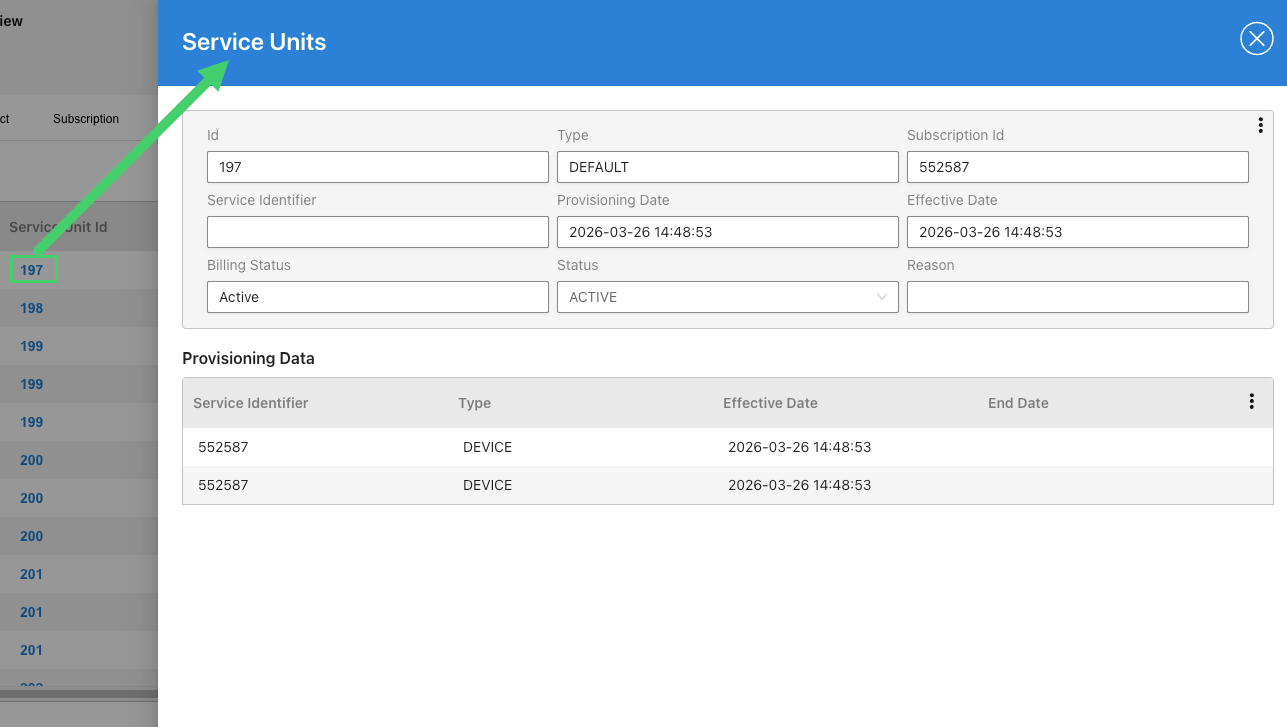
Key service unit attributes include:
- Type—The service type association for the service unit (for example, DEFAULT or VOICE).
- Effective Date—The effective date propagates from the subscription object. A service unit added later (for example, by adding an add-on or supplemental plan) cannot predate the subscription effective date.
- Status and Billing Status—The service unit status, managed by core Aria. Subscription status changes propagate automatically to service units. A service unit can also change status independently at the plan instance level. An inactive subscription cannot have an active service unit, and a closed subscription cannot have an active or inactive service unit.
- Provisioning Data—A table listing one or more service identifiers (also called service IDs, fulfillment IDs, or client plan instance IDs) linked to the service unit, along with the effective date and end date for each. This is the key attribute for most usage processing setups. Each add-on or supplemental plan service unit also copies the master plan service identifier, so usage processing for those plans can use either identifier.
Price Units
When a plan is purchased, Aria Allegro creates a price unit for each price offer.
Each price unit row includes linked values for navigating related data. Click a Price Unit Id link to open a drawer showing the price unit's details.

The navigation links in each price unit row are:
- Price Offer Id—Opens the price offer associated with the price unit.

- Plan CD Id—Runs a price plan search for the matching plan name and lists associated price offers.

- Rate Plan CD Id—Runs a price plan search for the matching rate plan schedule and lists associated price offers.
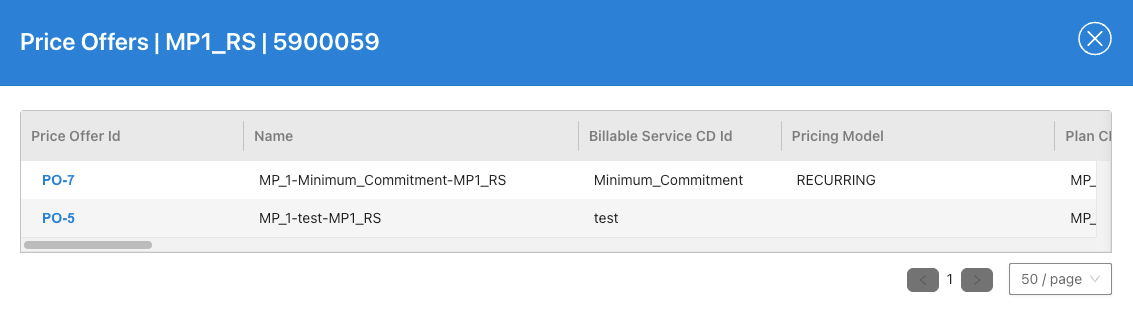
- Billable Service CD Id—Displays the billable service from core Aria with its service type association.

- Usage Type CD Id—Appears only for usage-type services. Opens the usage type details.

Key price unit attributes in the detail drawer include:
- Start Date—Set by the service unit effective date. A price unit start date can be later than the service unit effective date (for example, when a supplemental plan is added later or when different prices apply during different periods of a contract). A price unit start date cannot predate the service unit effective date.
- End Date—Set when the subscription has no renewal terms, or when specific pricing ends before the contract does.
- Status and Billing Status—Managed by core Aria. Subscription and service unit status changes propagate to price units. A price unit can also change status independently. For example, pricing might apply to only part of the contract term.
- Applied Start Date and Applied End Date—The date range during which the price unit's pricing applies.
- Cycle Start Date and Cycle End Date—The current billing cycle dates for the price unit.
- Skip Commitment—Indicates whether the price unit has an account-specific exclusion flag for commitment tracking.
Plan Instance View
The Plan Instance View tab displays the plan instance hierarchy for an account as a tree of tiles, providing a quick reference to the plan structure without switching between applications. The hierarchy follows the Master Plan, Add-on Plan, and Supplemental Plan levels governed by core Aria and related order activity.
To access the Plan Instance View:
- Access account subscriptions. See Access Account Subscriptions.
- Click the Plan Instance View tab in the activity pane.

The hierarchy displays the following tiles:
- An Account tile at the top of the hierarchy, showing the account Id.
- A root Plan Instance tile for the master plan, showing its Plan Instance Id and Plan CD Id.
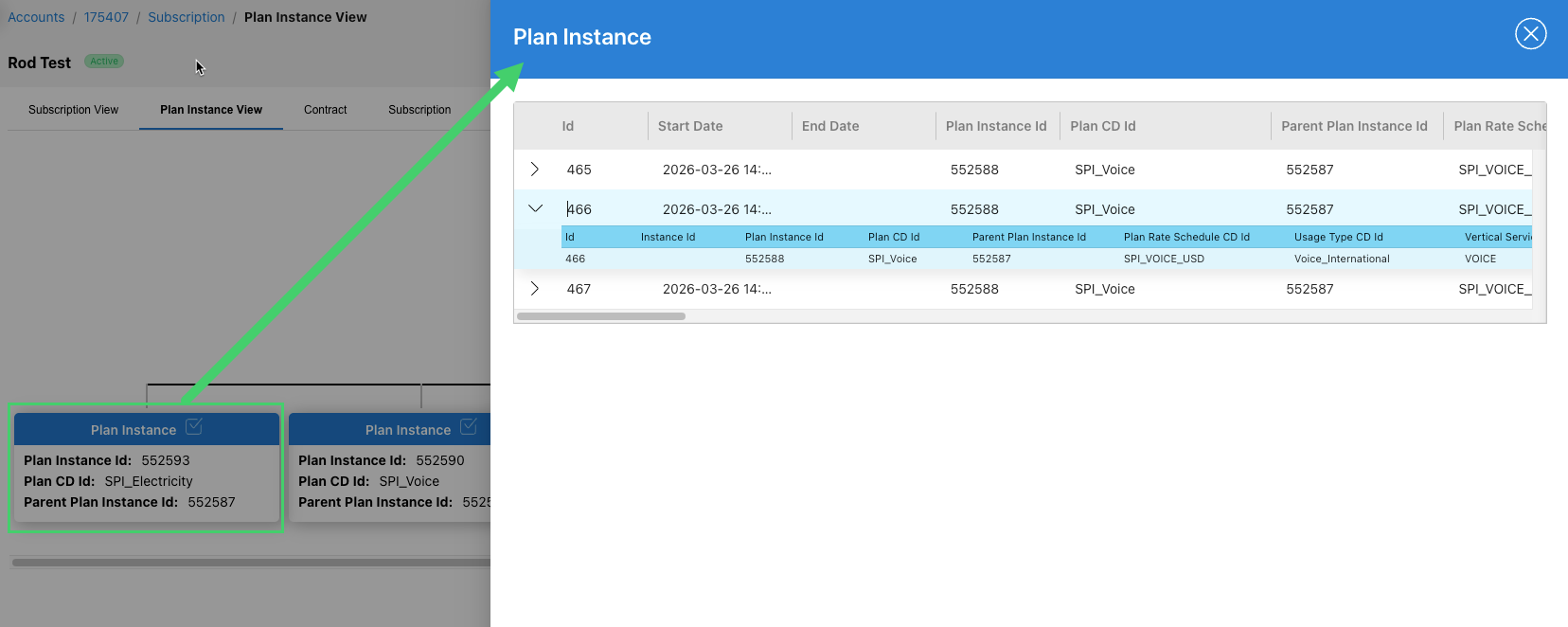
- A Plan Instance tile for each add-on or supplemental plan linked to the master plan, showing its Plan Instance Id, Plan CD Id, and Parent Plan Instance Id.
Click a plan instance tile to open a drawer listing the price units associated with that plan instance, including each price unit's Id, Start Date, End Date, Plan Instance Id, Plan CD Id, Parent Plan Instance Id, Plan Rate Schedule CD Id, Usage Type CD Id, and Vertical Service Type. Click the expand arrow on a row to reveal these fields inline for that price unit.
Contract Data
The Contract tab displays the contracts associated with an account. Contract data is optional. Not all accounts have contracts, and not all contract components are required.
To access contract data:
- Access account subscriptions. See Access Account Subscriptions.
- Click the Contract tab in the activity pane.

Click a contract to view its details. From the contract detail view, you can expand the following sections:
- View Plan Instances—Displays the plan instances associated with the contract.
- View Rollover Plans—Displays plans that roll over at contract renewal.
- View Rollover Rate Schedules—Displays rate schedules that apply at contract renewal.
When a contract reaches the end of its term, core Aria executes the contract end-of-term activities (extend, roll over, and so on). Aria Allegro receives these updates through the data feed and updates the account and subscription data accordingly.
Subscriptions Tab
The Subscription tab displays all subscription objects for the account in a table. Clicking the Id link for a subscription opens the same detail drawer as clicking a Subscription Id link in the Subscription View.
To access the Subscriptions tab:
- Access account subscriptions. See Access Account Subscriptions.
- Click the Subscription tab in the activity pane.

Service Units Tab
The Service Units tab displays all service unit objects for the account in a table. Clicking the Id link for a service unit opens the same detail drawer as clicking a Service Unit Id link in the Subscription View.
To access the Service Units tab:
- Access account subscriptions. See Access Account Subscriptions.
- Click the Service Units tab in the activity pane.

Price Units Tab
The Price Units tab displays all price unit objects for the account in a table. Clicking the Id link for a price unit opens the same detail drawer as clicking a Price Unit Id link in the Subscription View.
To access the Price Units tab:
- Access account subscriptions. See Access Account Subscriptions.
- Click the Price Units tab in the activity pane.

Service ID Lookup
The Service Id Lookup tab lets you verify whether a given service identifier (also called a provisioning ID, fulfillment ID, or client plan instance ID) resolves to an account, subscription, and service unit in Aria Allegro. Use this tab to diagnose usage suspense issues related to account lookup failures.
To access the Service Id Lookup tab:
- Access account subscriptions. See Access Account Subscriptions.
- Click the Service Id Lookup tab in the activity pane.
Enter the following parameters and click Search:
- Service ID—The provisioning ID from the usage record. This field is required.
- Service Type—(Optional) Select a service type from the dropdown to narrow the search to a specific service type.
- Start Date—The start date on the usage record. Use this to narrow the search and find the service unit active at that date.
- End Date—The end date on the usage record, if available.
The key output attributes to review are:
- Account ID—ID of the matched account.
- Subscription ID—ID of the matched subscription.
- Service Unit ID—ID of the matched service unit.
- Service Type—Service type linked to the service unit.
- Audit Effective Date—Audit effective date of the service unit.
- Audit Effective Status—Service unit status as of the audit effective date.
- Provisioning ID Effective Date—The date the provisioning ID became effective for the service unit.
- Provisioning ID End Date—The date the provisioning ID no longer applies to the service unit (for example, after a subscription cancellation or mobile number change).
- Balance Unit ID—ID of the balance unit linked to the service unit.
The following results indicate the reason for usage suspense:
- No row found—The provisioning ID is not linked to any account. The service was not found.
- Row found with inactive status—The service unit or subscription is inactive or closed. No active service exists for the usage record.
- Row found with a future effective date—The service unit is not yet active as of the usage record date.

Price Unit Analysis
The Price Unit Analysis tab lets you verify whether Aria Allegro can identify the correct price offer and price unit for a usage record. After a successful Service Id Lookup, use this tab to diagnose usage suspense issues related to price offer or price unit matching.
To access the Price Unit Analysis tab:
- Access account subscriptions. See Access Account Subscriptions.
- Click the Price Unit Analysis tab in the activity pane.
Enter the following parameters and click Search:
- Service Unit ID List—One or more service unit IDs from the Service Id Lookup output, separated by commas. This field is required.
- Price Unit Status—(Optional) Select a price unit status from the dropdown to filter results by status.
- CD Usage Type—(Optional) A client-defined usage type value to filter results.
- Start Date—The start date from the usage record.
- End Date—The end date from the usage record, if available.
- From Cache—Select this checkbox to return results from the Aria Allegro cache rather than the database. This improves performance.
The key output attributes to review are:
- ID—Price unit ID matching the search criteria.
- Audit Effective Date—The price unit's audit effective date.
- Audit Start Date—Start date of the price unit audit.
- Audit End Date—End date of the price unit audit.
- CD Usage Type—Client-defined usage type from the price unit.
- Plan Instance ID—ID of the plan instance linked to the price unit.
- Pricing Model—Pricing model linked to the price offer for the price unit.
- Priority—Priority of the returned price offer.
- Commitment Term—Commitment term linked to the price offer.
- Billing Profile ID—Billing profile linked to the price unit.
- Price Offer JSON—Full JSON of the price offer linked to the price unit.
- No of Units—Quantity purchased for the plan.
- Skip Commitment Tracking—Indicates whether the price unit has an account-specific exclusion flag for commitment tracking.
The following results indicate the reason for usage suspense:
- No row found—The plan for the usage type is not associated with the account.
- Row found with inactive status—The price unit is inactive or cancelled. No active price unit exists for the usage record.
- Row found with a future start date or past end date—The price unit is not yet active or has already been inactivated or cancelled.
