Aria Knowledge Central

System Properties

Overview

These are system properties that you can setup for each client.

View Current System Properties

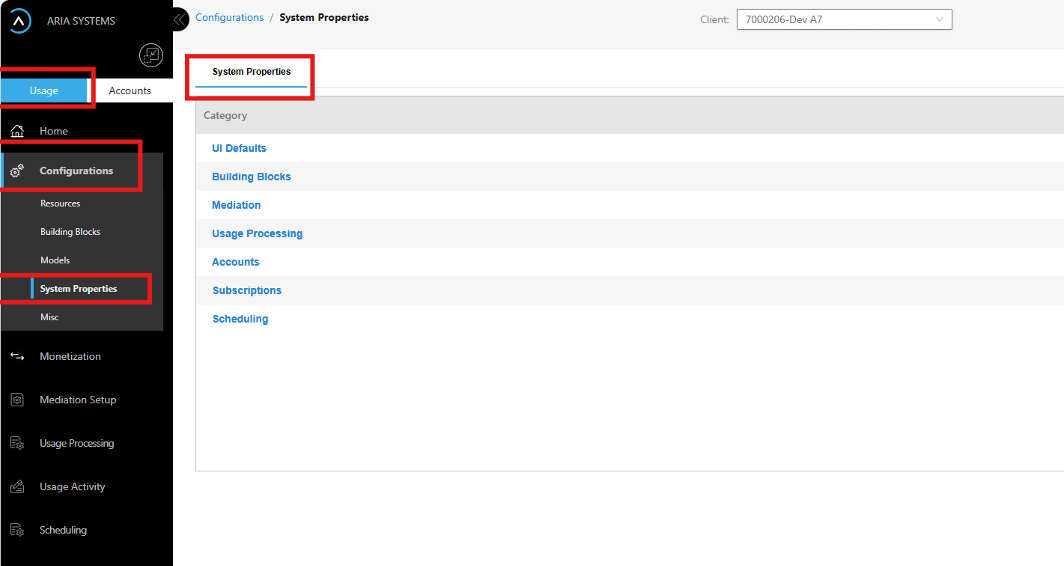
  1. Click on the Usage switch (Usage/Accounts toggle switch) in the navigation pane.
  2. Click on the Configurations menu option in the navigation panel. This will expand the submenu for Configurations in the Navigation Pane.
  3. Click on the System Properties menu option in the navigation pane. This will show categories of System properties in a table form in the activity pane. These categories are fixed. More categories may be added in the future as required.
  4. Each Category in the Activity pane is an ID link. Click on the respective ID links to open a drawer with a list of properties for that category.

The following UI screenshot shows the navigation to System Properties page:

sys-prop-01.png

Properties in the UI Defaults Category

The properties are:

  1. Main Table Style—Set the value from the dropdown list to set the default style as Cozy or Compact for the main table in the Activity pane for all screens.
  2. Drawer Fields Style—Set the value from the dropdown list to set the default style as Cozy or Compact for the main table in the Activity pane for all screens.
  3. Drawer Table Style—Set the value from the dropdown list to set the default style as Cozy or Compact for the main table in the Activity pane for all screens.
  4. Multi Search Enabled—Set the Boolean value from the dropdown list. Keep it false if you want CCP type searches. Select True if you want to enable searches using multiple filter attributes.
  5. Default Page Size—Set the default page size for all searches by selecting the value from the dropdown list

Properties in the Building Blocks Category

The properties are:

  1. Default Currency—Select the default currency from the list of currencies configured for the client by selecting a value from the dropdown list. This is helpful if most of your monetization configurations are in one currency.
  2. Default Service Type—Select the default service-type from the list of service-types configured for the client by selecting a value from the dropdown list. This is helpful if there is only one service type or one dominant service-type for the client.
  3. Default Usage Record Type—Set the value from the dropdown list to set the default usage record type. This can be POSTPAID, indicating that Allegro is expected to perform postpaid rating.
  4. Default Unit—Select the value from the dropdown list to set the default unit of measure that the UI will use where required.
  5. Default Transaction Type—Set the default transaction type associated for the Client’s Allegro setup by selecting the default value from the dropdown list. This should be USAGE for most deployments.
  6. Default Rounding Method—Set the default rounding method by selecting the right value from the dropdown list. The default rounding method will be used automatically when you add currency, accumulator or allowance resources. Preferred method is HALF_UP (to use Half up rounding)
  7. Rounding Precision—Add an integer value as the rounding precision for decimal places. The default precision will be used automatically when you add currency, accumulator or allowance resources.
  8. Purchase Proration—Select the default purchase proration setting by selecting the right value using the dropdown list. This applies to recurring charges where accumulators and allowances are involved. The purchase proration comes into play when a plan (master, supplemental or add-on plan) is purchased for the account and the plan has a recurring service.
  9. Cancel Proration—Select the default cancel proration setting by selecting the right value using the dropdown list. This applies to recurring charges where accumulators and allowances are involved. The cancel proration comes into play when a plan (master, supplemental or add-on plan) is cancelled for the account and the plan has a recurring service.
  10. Upgrade Proration—Select the default upgrade proration setting by selecting the right value using the dropdown list. This applies to recurring charges where accumulators and allowances are involved. The upgrade proration comes into play when a plan (master, supplemental or add-on plan) is upgraded to a higher value plan and the plans have a recurring service.
  11. Downgrade Proration—Select the default downgrade proration setting by selecting the right value using the dropdown list. This applies to recurring charges where accumulators and allowances are involved. The downgrade proration comes into play when a plan (master, supplemental or add-on plan) is downgraded to a lower value plan and the plans have a recurring service.

Properties in the Mediation Category

The properties are:

  1. Default Interface Type—Select the value from the dropdown list to set the default Interface type. For example, if the usage is file-based, then the interface type FILE should be selected.
  2. Default Interface Method—Select the value from the dropdown list to set the default Interface method. For example, if files are getting pushed into Allegro set up, then the interface method “PUSH” should be selected.
  3. Default Interface Auth Type—Select the value from the dropdown list to set the default Interface authentication type. This is meaningless for a file-based interface. For other forms of interface (e.g., API), this value can help auto-select the preferred authentication type.
  4. Default File Delimiter—Enter a delimiter as the default file delimiter. The use of this default property may be limited for clients which only operate on files in one structure and use the same file delimiter.
  5. Default Usage Record Type—Select the default usage record type from the dropdown list. If Allegro is expected to do postpaid rating, then set the value as POSTPAID.

Properties in the Usage Processing Category

The properties are:

  1. Default Stream Status—Select the default Stream status from the dropdown list. This is used when setting up new Processing streams (tailored rating engine). This should be ACTIVE for most set-ups.
  2. Default Module Status—Select the value from the dropdown list to set the default module status. This is used when setting up new Processing streams (tailored rating engine). This should be ACTIVE for default module status
  3. Discounting Enabled—This is for future roadmap item. Select the Boolean value from the dropdown list to determine whether discounting feature is enabled for the client set up or not.
  4. Revenue Sharing Enabled—This is for future roadmap item. Select the Boolean value from the dropdown list to determine whether Revenue Sharing feature is enabled for the client set up or not.
  5. Commissions Enabled—This is for future roadmap item. Select the Boolean value from the dropdown list to determine whether Commissions feature is enabled for the client set up or not.
  6. Sharing Groups Enabled—This is for future roadmap item. Select the Boolean value from the dropdown list to determine whether Sharing Groups feature is enabled for the client set up or not.
  7. Charge Sharing Enabled—This is for future roadmap item. Select the Boolean value from the dropdown list to determine whether charge sharing feature is enabled for the client set up or not.
  8. Usage Record Edit Enabled—This is for future roadmap item. Select the Boolean value from the dropdown list to determine whether Usage Record Edit is enabled for the client set up or not. The Usage Record Edit is used when usage records get suspended for later re-processing.
  9. Allowance Rollover Enabled—This is for future roadmap item. Select the Boolean value from the dropdown list to determine whether Allowance rollover feature is enabled for the client set up or not.
  10. Usage Time—When a usage record spans time boundaries (peak and off-peak boundary, billing cycle boundaries and more), then select the default rule from the dropdown list. The possible values are USE_START (to use the start time of the record), USE_END (to use the end time of the record) and SPLIT (for later, to split the record for each time band).

Properties in the Accounts Category

The properties are:

  1. Default Billing DOM—Enter the default anniversary date for billing the accounts for the client. 
  2. Drawer Billing Frequency—Select the default billing frequency from the dropdown list. For Monthly billing, MONTHLY is set as the default.
  3. Default Contact Role—A contact in Allegro can be associated with multiple roles. A Billing role is a default role required. Set the Default role for a contact by selecting the role from the dropdown list.
  4. Default Address Role—An address in Allegro can be associated with multiple roles. A Billing role is a default role required. Set the Default role for an address by selecting the role from the dropdown list.

Properties in the Subscriptions Category

The properties are:

  1. Default Initial Term Unit—Select the value of default unit for the Initial subscription term. For example, for an initial subscription term of 3-years, set the Default Initial Term Unit as YEARS.
  2. Default Initial Term Frequency—Enter the integer value for the Initial subscription term. For example, for an initial subscription term of 3-years, set the Default Initial Term as 3.
  3. Default Renewal Term Unit—Select the value of default unit for the Renewal subscription term. For example, for an initial subscription term of 3-years, followed by Monthly subscriptions, set the Default Renewal Term Unit as MONTHS.
  4. Default Renewal Term Frequency—Select the value of default unit for the Renewal subscription term. For example, for an initial subscription term of 3-years, followed by Monthly subscriptions, set the Default Renewal Term as 1 (for monthly).
  5. Default Subscription Status—Select the default subscription status from the dropdown list. For most scenarios this should be ATIVE. However, if activation is required, then the default status can be INACTIVE. The activation process should move the subscription to an ACTIVE state.

Properties in the Scheduling Category

The properties are:

  1. Auto Trigger Allowances—Select the Boolean value from the dropdown list to indicate whether we rely on the batch jobs to trigger allowances for the next cycle or not. This is expected to be the default behavior if allowances are used and hence set the value as TRUE.
  2. Usage Triggered Allowances—Select the Boolean value from the dropdown list to indicate whether a usage can trigger the allowance for the next cycle or not. This ideally should be set as FALSE.

    For example, If there is a monthly recurring allowance with anniversary date as 5th of the month and if there is a usage record dated 5th and the allowance bucket is not created for the next month (no allowance to consume for the usage record), then this property enables the Allegro rating engine to check and add allowances before processing the usage records. Please note that this may impact the Rating SLA’s and hence it is advised to manage this with the batch jobs only.

  3. Bulk Load Usage Batch Size—Enter an integer value to select the default batch size to use with the bulk_upload_usage_m API which is used to synchronize monetized usage from Aria Allegro to Aria Core. For e.g., a batch size of 5000 means that a single API call for each batch will have 5000 monetized usage records.
  4. Bulk Load Usage Update Status Batch Size—Enter an integer value to select the default batch size to use to update the monetized usage status as a result of using the bulk_upload_usage_m API which is used to synchronize monetized usage from Aria Allegro to Aria Core. For e.g., if a batch size of 5000 is used to send monetized usage transactions from Aria Allegro to Aria Core, then a batch size of 1000 can be used to update the status of the monetized usage in Aria Allegro to indicate whether the usage record was synchronized successfully or not.

Properties in the Virtual Time Category

The properties are:

  1. Enable Virtual Time—Select the value to indicate whether a virtual time is enabled or not. Please note that this property will not be allowed for a production deployment.
  2. Current Virtual Time—If virtual time is enabled, then this is a display only field to show what is the virtual date and time set for the deployment.
  3. Set Virtual Time—If virtual time is enabled, then this parameter can allow moving the virtual date/time forward or backward. Please note that the UI controls the format for setting the date and time. The standard Allegro format as “yyyy-mm-dd HH:MM:SS”. If the time component is not selected, then UI will set the time as “00:00:00”.
TOP
  • Was this article helpful?