

Input
Mandatory and Optional Fields
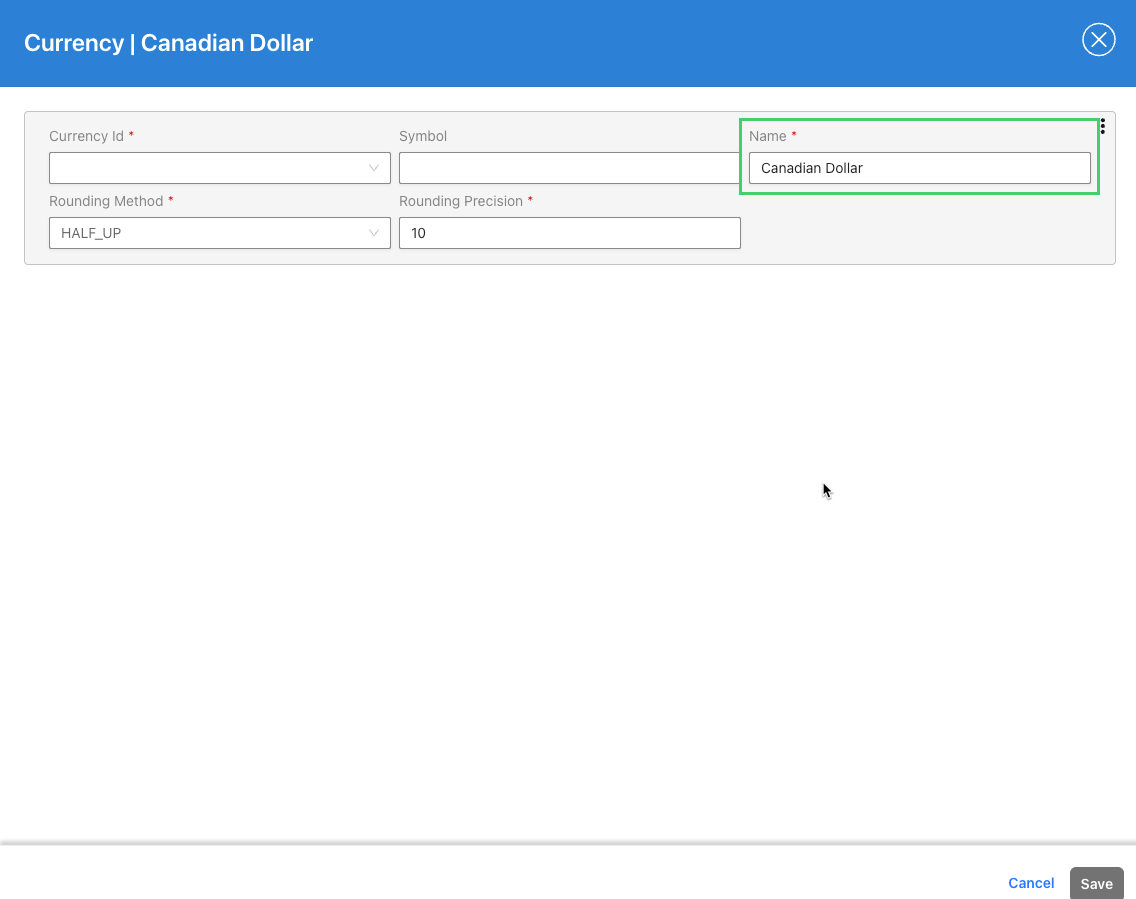
Mandatory fields are marked with a red asterisk. Fields without an asterisk are optional.

Text Input
A text input field accepts free-form text. Type your value directly into the field.
Integer Input
An integer input field accepts whole numbers. You can type a value directly or use the up and down arrows on the right side of the field to increment or decrement the value.

Dropdown Selection
A dropdown field allows you to select a value from a predefined list. The dropdown is identified by a down arrow on the right side of the field.

Checkbox Input
A checkbox acts as a toggle. Click the checkbox to select or deselect the option.

Date Input
Date fields use the format yyyy-mm-dd (for example, 2025-08-30 for August 30, 2025). You can type the date directly or click the field to open a calendar picker. In the calendar picker:
- Click the single left or right arrow to move one month backward or forward.
- Click the double left or right arrow to move to the same month in the previous or next year.
- Click the month and year label to select the year and month, then click the day to set the full date.

Time Input
Time fields use the format HH:MM:SS. You can type the time directly (for example, 11:00:00 for 11 a.m.) or use the dropdown to select the hour, minute, and second values.
