

Rules
The mediation rules that can be configured include:
- Set up filter rules to exclude records.
- Set up enrichment rules to modify existing attributes (e.g., date format changes) or populate others (e.g., flexible attributes based on other values or static data mapping).
- (Future, depending on client priority) add aggregation rules to combine similar usage records.
- (Future, depending on client priority) add splitting rules to divide a usage record for different purposes (e.g., splitting a multi-year financial credit record by year) or accounts (e.g., wholesale and retail rating).
View Existing Rules Configuration
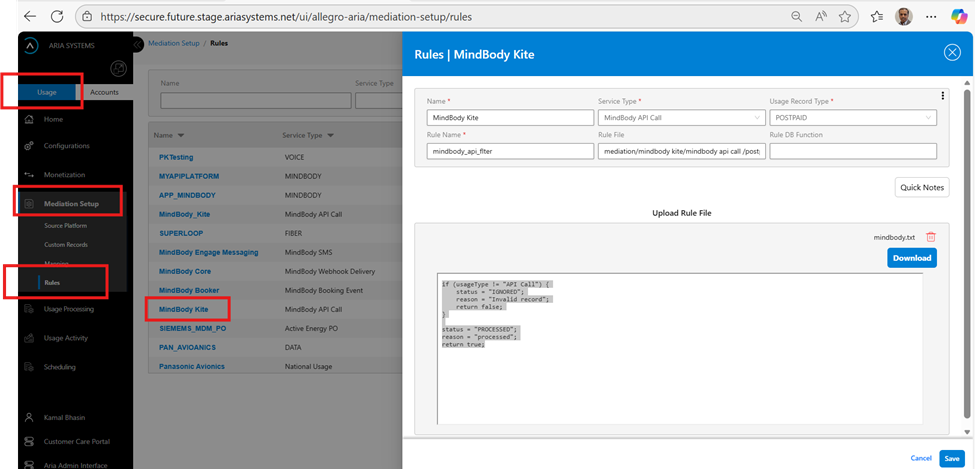
- Click the Usage switch (Usage/Account toggle) in the navigation pane.
- Click the Mediation Setup option in the navigation panel to expand its submenu.
- Click the Rules menu option.
- This fetches existing rule configurations and displays each as a line in the table.
This is shown in the following screenshot:
View Details of a Specific Rule Configuration
- Navigate using “To view existing rules configuration” to see the list of rule configurations.
- Select and click the ID link. This opens the drawer to view and modify data.
Filter Attributes For The Rule Configuration
- Name: A case-insensitive, partial match filter for the source platform name. For example, “nokia” matches all configurations for that platform.
- Service Type: Filters rule configurations by service-type association. A source platform can support different usage record formats for various service types.
Sort Attributes For The Rule Configuration
- Name: Sort ascending or descending by the rule configuration name.
- Service Type: Sort ascending or descending by the service-type associated with the source platform.
Add a New Rule Configuration
- Navigate using “To view existing rule configuration”.
- Click the Add Rule configuration button at the top-right corner. This opens a drawer to add the new configuration details:
- In the Name field, enter a unique name for the source platform rules. Avoid spaces as the name forms the AWS S3 file path.
- Select the Service Type from the drop-down list.
- Select the Usage Record Type from the drop-down list.
- Enter the Rule Name for the configuration.
- The Rule File field displays the AWS S3 mediation folder path, generated from the entered attributes.
- Enter a database function name for alternative rule definitions, useful for enrichment rules requiring extra data setup or lookup.
- Upload rules file—Upload independently created rule files. Clicking upload file opens a drawer with two options:
- Drag and drop a file into the box.
- Click the box to open a file browser and select the file to upload.
- Click the SAVE button at the drawer's bottom right to save the configuration via the backend API.
- Click the CANCEL button at the drawer's bottom right to discard changes and return to the main activity pane.
Follow these steps to modify an existing configuration:
- Navigate using “To view existing rule configuration”.
- Click the Id link highlighted in Aria Blue to open the drawer for editing a source platform's attributes.
- Modify attributes inline as needed; the ID field is not editable.
- Alternatively,
- Upload a new or modified rules file. The UI allows downloading, editing, and re-uploading files. Aria Allegro archives older files in AWS S3 folders accessible to authorized users.
- Delete the rules file by clicking the Trash Bin icon above the file content on the right.
- View the rules file content in read-only mode after upload.
- Click the SAVE button at the drawer's bottom right to save changes via the backend API.
- Click the CANCEL button at the drawer's bottom right to discard changes and return to the main activity pane.
This sample rule checks the ‘usagetype’ value to determine if the record should be filtered. Refer to the Allegro Usage container fields available in the mapping configuration.
Modify Existing Mediation Rules Configuration
The steps to modify an existing mapping configuration are:
- Navigate using “To view existing rule configuration”
- Click the Id link button highlighted in Aria Blue to open the drawer and modify attributes of an existing source platform.
- Modify attributes inline as needed (the ID field is not editable).
- Alternatively,
- Upload a new or modified rules file. The UI lets you download, edit, and re-upload files. Aria Allegro archives older files in AWS S3 folders accessible to authorized users.
- Delete the rules file by pressing the Trash Bin icon above the rules file content on the right.
- View the rules file content. After uploading, Allegro UI displays it as read-only by default.
- Click the SAVE button at the drawer's bottom right to save changes via the backend API.
- Click the CANCEL button at the drawer's bottom right to discard changes and return to the main currency resources pane.
Sample rule configuration
Example of a rule to filter out records using an IF clause.
if (usagetype != "API Call") {
    status = "IGNORED";
    reason = "Invalid record";
    return false;
}
status = "PROCESSED";
reason = "processed";
return true;
Example of a rule to enrich the usage record with a direction based on an IF clause and ignoring the Incoming calls from monetization.
if bpartyNumber == "77099888888" {
	direction = "IN";
	reason="New Rules Passed";
	bpartyNumber = "655555666";
    return true;
} else {
	reason="INCOMINGCALL";
	status="IGNORED";
    return false;
}
Example of a rule to enrich a net-value of the usage record using arithmetic operation against two fields.
netvalue = double(quantity) * double(flexattr1);
reason = "";
status = "PROCESSED";
return true;
Example of a rule to manage the input quantity for certain calls only.
- If calls are made to “1807” number,
- then take away the first 30 seconds and round the remaining quantity to next minute (E.g., 50 sec call rounds to 1 minute, 130 second call rounds to 2 minutes)
- If the call is less than 30 seconds, then the monetized quantity is 0.
- For all other calls, round the calls to the next minute.
if (bpartyNumber != nil && string.startsWith(bpartyNumber, "1807")) {
    tmp = max(double(quantity) - 30, 0);
    if (tmp > 0) {
        quantity = long((tmp - 1) / 60) + 1;
    } else {
        quantity = 0;
    }
} else {
    if (double(quantity) > 0) {
        quantity = long((double(quantity) - 1) / 60) + 1;
    } else {
        quantity = 0;
    }
}
status = "PROCESSED";
reason = "processed";
return true;
Example of a rule to filter out calls as Sensitive calls,
- if the length of the dialed digits is 3 and the numbers dialed are ‘110’ or ‘112’ OR
- if the length of the dialed digits is >=5 and the integer value of the first 5 digits of the dialed digits is > 49000
if (
    bpartyNumber != nil &&
    (
        (string.length(bpartyNumber) >= 5 && long(string.substring(bpartyNumber, 0, 5)) > 49000)
        ||
        (string.length(bpartyNumber) == 3 && (bpartyNumber == "110" || bpartyNumber == "112"))
    )
)  {
    reason = "Sensitive Calls";
    status = "IGNORED";
    return false;
}
 else {
status="PROCESSED";
return true;
}
Example of a rule to calculate the quantity of a usage record based on the number of seconds between two dates and rounding the resulting quantity to the next minute. The seconds_between is a special function added in Allegro mediation. Other standard options are available as well.
quantity = (max(seconds_between(startDate, endDate) - 30, 0) + 59) / 60;
reason="";
status="PROCESSED";
return true;
Example of
- a date standardization where a date in format 'yy-mm-dd; is converted to 'yyyy-mm-dd HH:MM:SS'
- Input and output BYTES are converted into Mega Bytes for monetization. A rate unit configuration may use the enriched input and output bytes values.
if 1 == 1 {
	tran_date = '20' + string.substring(tran_date, 6, 8) +
		'-' + string.substring(tran_date, 0, 2) +
		'-' + string.substring(tran_date, 3, 5) +
		' ' + tran_time + '00:00:00';
	inputbytes = double(inputbytes) / 1048576.0;
	outputbytes = double(outputbytes) / 1048576.0;
	status = "PROCESSED";
}
reason="";
status="PROCESSED";
return true;